Cdoc
Quality IT Services since 1994
Pronounced SEA Dock
Always Better Than Ever
Our Services →
Systems Work Network Security VPN & WiFi Custom Hosting AI Integration Support
MooseMail University — Cdoc.Net

Contacts Sing.
Calendars Dance.

The part of email nobody ever explains clearly. How your contacts and calendar actually work — and why MooseMail does it better than the free stuff.

Most people have a contacts disaster. Phone has some. Laptop has different ones. Gmail ate the rest. Things get duplicated, lost, or mangled. MooseMail fixes this — but only if you understand how the pieces fit together. Here's the whole picture in plain language.

🦌

How to Make Your Contacts Sing and Your Calendar Dance

The part nobody ever explains clearly. We will.

Use This

🦌 MooseMail Address Book

Your real contact book. Lives in DavMoose, syncs to all your devices. Add a contact in WebMoose, it appears on your phone. Fix a phone number on your tablet, WebMoose sees it. This is the one. Anything you care about keeping belongs here.

Nice to Know

📮 Collected Recipients

WebMoose quietly remembers email addresses you've typed or received. It uses these for autocomplete when composing mail. They are not in your real contact book and do not sync anywhere. Handy, but not your contacts.

Ignore This

👤 Personal Addresses

A basic local address list built into WebMoose. Think of it as a leftover from the old days. It doesn't sync, it doesn't travel, and there's no reason to use it now that you have the real MooseMail Address Book.


🏔️

DavMoose is the Master of Record

Your contacts and calendar live in DavMoose — the sync engine behind MooseMail. It's the single source of truth. WebMoose reads from it. Your phone reads from it. Your tablet reads from it. If it's in DavMoose, it's safe.
📱

Devices Are Guests, Not Owners

Your phone doesn't own your contacts anymore — it just displays them. If your phone drops a birthday, mangles a name, or loses a photo: fix it in WebMoose. DavMoose pushes the correction back to every device. The data is safe at the source.

✏️

Always Edit in WebMoose

New contact? WebMoose. Edit a phone number? WebMoose. You can edit on your phone too — but if a device syncs something odd back, WebMoose is where you go to set it straight. Consistent input, consistent results.

🎂

Birthdays and the DAV Slop Problem

Apple, Google, Android, and Thunderbird all implement contact sync slightly differently. Some show birthdays. Some create calendar events. Some do both. Some do neither. Your birthday data is stored correctly in DavMoose — if a particular device doesn't show it, that's the device's limitation, not yours.

📅

One Calendar, One Address Book

Each MooseMail account has exactly one calendar and one address book that sync. This keeps everything clean and predictable. If you need additional shared or specialty calendars, contact your Cdoc support administrator.

🔒

Why This Is Better Than What You Had

Google Contacts is Google's data. iCloud contacts are Apple's hostage. MooseMail contacts are yours, on a server your organization controls, accessible by any standards-compliant app. When you leave a platform, your data comes with you — no export dance required.

📡

DavMoose — Adding Contacts & Calendar to Your Devices

Step-by-step for iPhone, Android, Thunderbird, and Outlook.

DavMoose syncs your contacts and calendar to any device that speaks CardDAV or CalDAV — which is pretty much all of them. Your server URLs and login credentials are in your MooseMail Setup Guide. Have that handy before you start.

🍎 iPhone & iPad

  1. Open SettingsMailAccounts
  2. Tap Add AccountOther
  3. For contacts: tap Add CardDAV Account
  4. For calendar: tap Add CalDAV Account
  5. Enter the server URL from your Setup Guide
  6. Username: your full MooseMail email address
  7. Password: your MooseMail password
  8. Tap Next — iOS will verify and save

Do contacts first, then repeat for calendar. Each gets its own account entry.

🤖 Android

  1. Install DAVx⁵ — free on F-Droid or the Play Store
  2. Open DAVx⁵ → tap + to add an account
  3. Choose Login with URL and user name
  4. Paste the CardDAV URL from your Setup Guide
  5. Username: your full MooseMail email address
  6. Password: your MooseMail password
  7. Tap Login — DAVx⁵ will discover both contacts and calendar
  8. Check both boxes and tap the sync icon

DAVx⁵ handles both CardDAV and CalDAV in one account — no need to add them separately.

⚡ Thunderbird

  1. Contacts: Open Address Book → NewAdd CardDAV Address Book
  2. Paste the CardDAV URL from your Setup Guide, sign in
  3. Calendar: Open Calendar → New CalendarOn the Network
  4. Choose CalDAV, paste the CalDAV URL, sign in
  5. Name your calendar, pick a color, click Subscribe

Thunderbird handles both protocols cleanly. If it asks to detect settings automatically, let it — it usually works.

🪟 Outlook

  1. Native DAV support in Outlook is… a project.
  2. A working solution is currently being tested in Cdoc Laboratories.
  3. We will have something solid for you — we just won't ship it until it actually works.

In the meantime: use your phone or Thunderbird for DavMoose sync. WebMoose in a browser tab is always there for contacts and calendar editing.

🔬 Watch this space.

🖥️

WebMoose Field Guides

Step-by-step guides for common tasks in your browser.

Log in to WebMoose at cdoc.net and follow along. These are the settings worth knowing about.

Field Guide 1

Activate Your MooseMail Address Book as the Default

  1. Log in to WebMoose at cdoc.net
  2. Click Contacts in the left sidebar
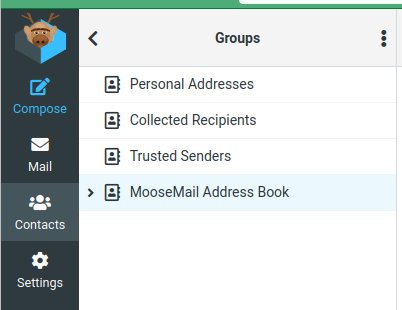
  3. Click the Groups folder if it isn't already open — you should see four address books listed:
    Personal Addresses, Collected Recipients, Trusted Senders, and MooseMail Address Book
  4. Click Settings in the left sidebar
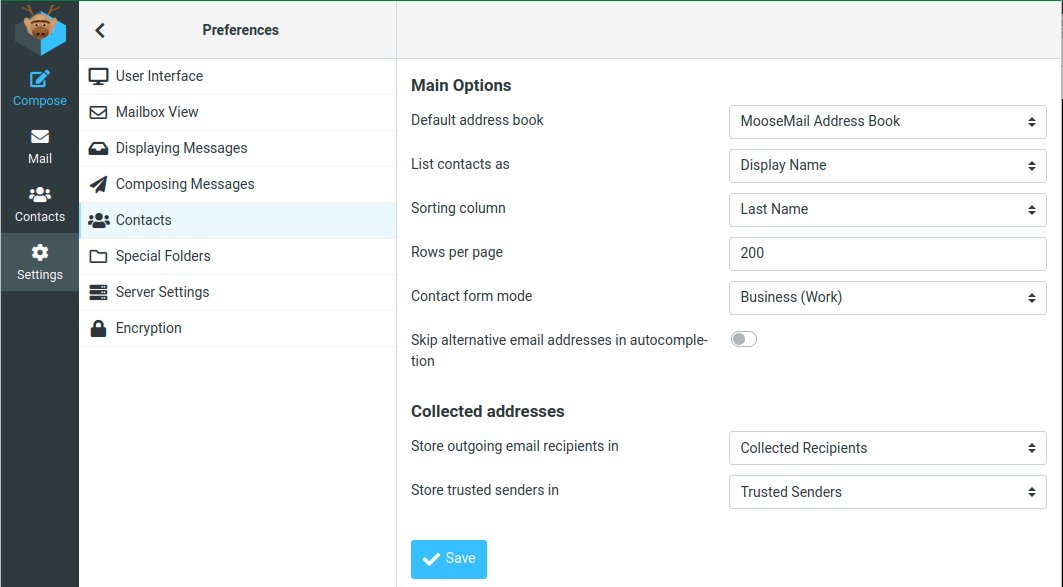
  5. Click PreferencesContacts
  6. Under Main Options, find Default address book
  7. Set it to MooseMail Address Book
  8. Click Save
Why this matters: Without this setting, new contacts you add may land in Personal Addresses — which doesn't sync to your devices. MooseMail Address Book is the real one. Make it the default and forget about it.
Contacts → Groups — four address books
WebMoose Contacts showing four address books including MooseMail Address Book
Settings → Preferences → Contacts — set default
WebMoose Preferences Contacts panel showing Default address book set to MooseMail Address Book
Field Guide 2

Dealing With Junk Mail — Your One Move

  1. MooseWash is already on the job — system-wide filtering runs in the background blocking spam, phishing, and general internet unpleasantness. That's Cdoc's job, not yours.
  2. When something obnoxious slips through anyway, select it in your Inbox
  3. Click the More menu (the three dots ···) in the message toolbar
  4. Choose Move toJunk
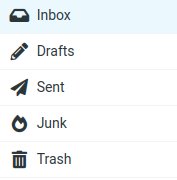
  5. Done. The message moves out of your Inbox and into the Junk folder where it belongs.
That's the whole job. MooseWash handles the heavy lifting. Your Junk folder handles the stragglers. Check your Junk folder occasionally — legitimate mail can end up there too, and you can move it back to Inbox the same way.
Message toolbar — click More (···)
WebMoose message toolbar showing Reply, Forward, Delete, Mark, and More buttons
Folder list — Junk is right there
WebMoose folder list showing Inbox, Drafts, Sent, Junk, and Trash
🚦

Trusted Senders — Leave It Alone

You'll see it. Here's what it is and why you shouldn't touch it.

What It Is

🚦 Trusted Senders

WebMoose has a setting that lets you mark specific email addresses or domains as "trusted." The idea is that mail from trusted senders skips certain spam filters and displays remote images automatically.

Do Not Use

⚠️ Why to Skip It

Spam and phishing mail routinely forges sender addresses. Adding senders to a trust list gives a false sense of security and can let bad mail through your guard. Your MooseWall firewall handles real spam filtering — this setting adds nothing useful on top of that.


👀

If You See It, Just Move On

The Trusted Senders list lives in WebMoose settings. It won't hurt anything sitting there empty. If someone told you to add things to it, they were mistaken. If you accidentally added something, contact your Cdoc support administrator and we'll sort it out.

Ready to connect your devices? Your server URLs, login credentials, and email client settings are in your personal MooseMail Setup Guide — available to Cdoc clients in the Client Resources section.

Go to Support & Resources →
MooseMail runs on two outstanding open source projects: Roundcube (WebMoose) and Baïkal (DavMoose). We didn't invent the wheel — we just put good tires on it. 🦌
Back to Support